Using the ipykernel in JupyterLab
Go to VACC Open OnDemand, bring up
the JupyterLab / Jupyter Notebook form and select JupyterLab
mode.
Once your JupyterLab session has started, the interface you see will depend upon how you ended your previous session. If you left a notebook open, it will likely be open at the start of your new session, as below.
If you want to switch to a different kernel in an open notebook, simply click the button in the upper-right side of the notebook (indicated by the blue arrow in the screenshot below) to open a kernel selection window from which to choose your desired kernel. Otherwise, you can either close the open file via the File menu or via the X on the tab and you will be left with an open Launcher tab. Or you can simply click the + symbol (indicated by the red arrow in the screenshot below) next to the open file tab and a new tab with the Launcher will open.
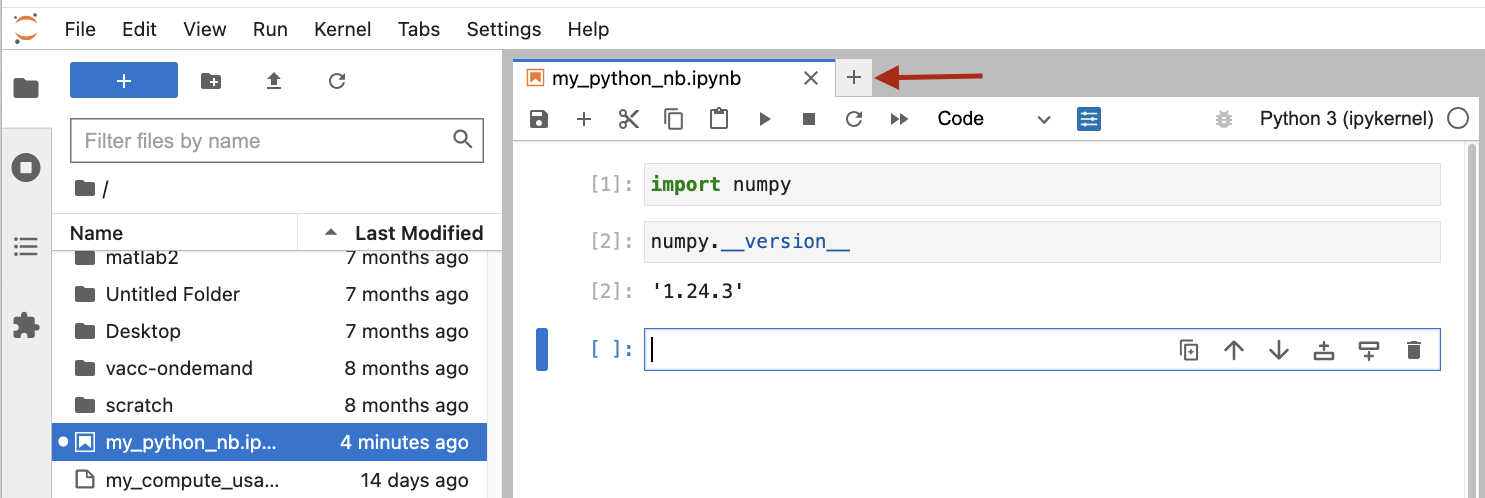 Screenshot of JupyterLab interface indicating the plus symbol for opening a launcher tab (red arrow) and the location of the button to launch the kernel selector for an open notebook (blue arrow).
In the Notebook section of the Launcher tab, you should see the name
given to your virtual environment (in this example, my_bio_env)
listed as an available kernel (see screenshot below). Clicking the
icon with the kernel name will open a new notebook with the previously
created environment loaded as the kernel.
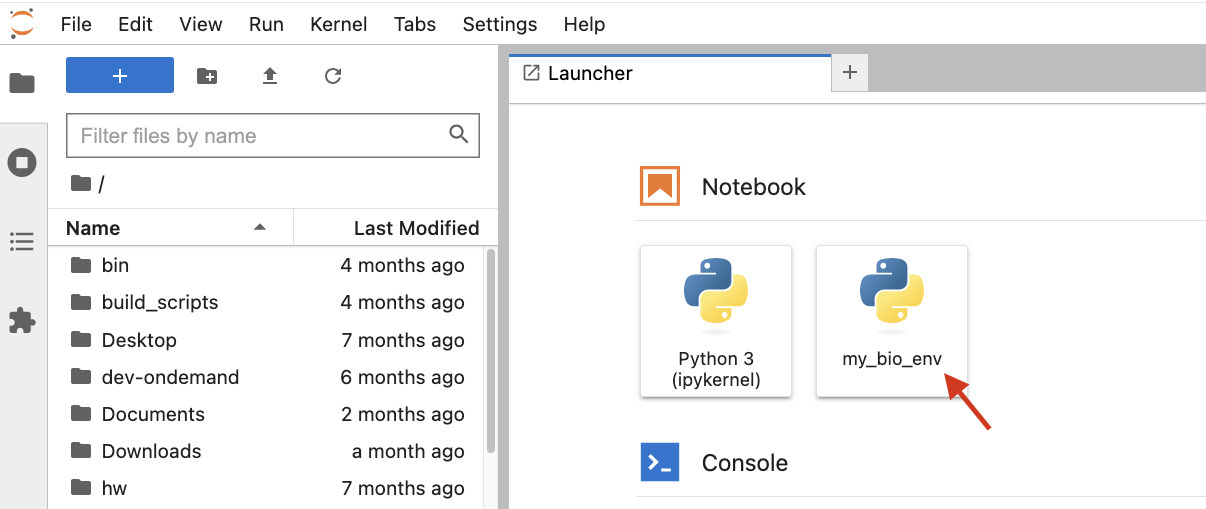 Screenshot of JupyterLab interface indicating the kernel icon in the Notebook section of JupyterLab's Launcher tab.